Get help

Photo & videoPixConvert for Windows

Convert HEIC to JPG on Windows

Drop in iPhone photos and get JPG, PNG or WebP back. Whole batches and folders, converted on your PC, so nothing is uploaded.

  • Free in the Microsoft Store
  • No account needed
  • Works offline
  • Files stay on your PC
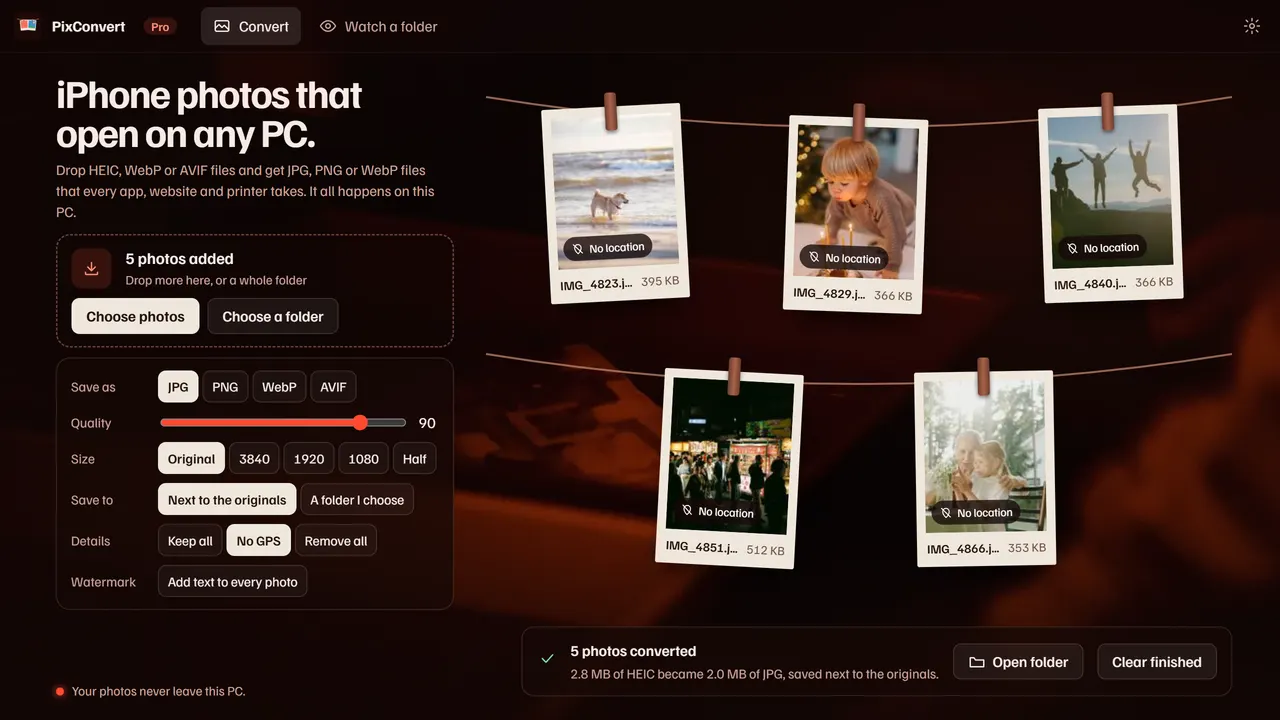
PixConvert with five converted photos hanging on a drying line and the conversion settings beside them.

Features

What it does

PixConvert with five converted photos hanging on a drying line and the conversion settings beside them.

A whole camera roll in one go

Drop in iPhone photos or whole folders and every one is converted, each print developing into colour on the line. HEIC, HEIF, WebP, AVIF, PNG, JPG, BMP and TIFF in; JPG, PNG or WebP out.

  • Originals stay untouched

    Converted photos are saved next to the originals, or in a folder you choose. Nothing is overwritten: a name that exists gets a number, like photo (1).jpg.

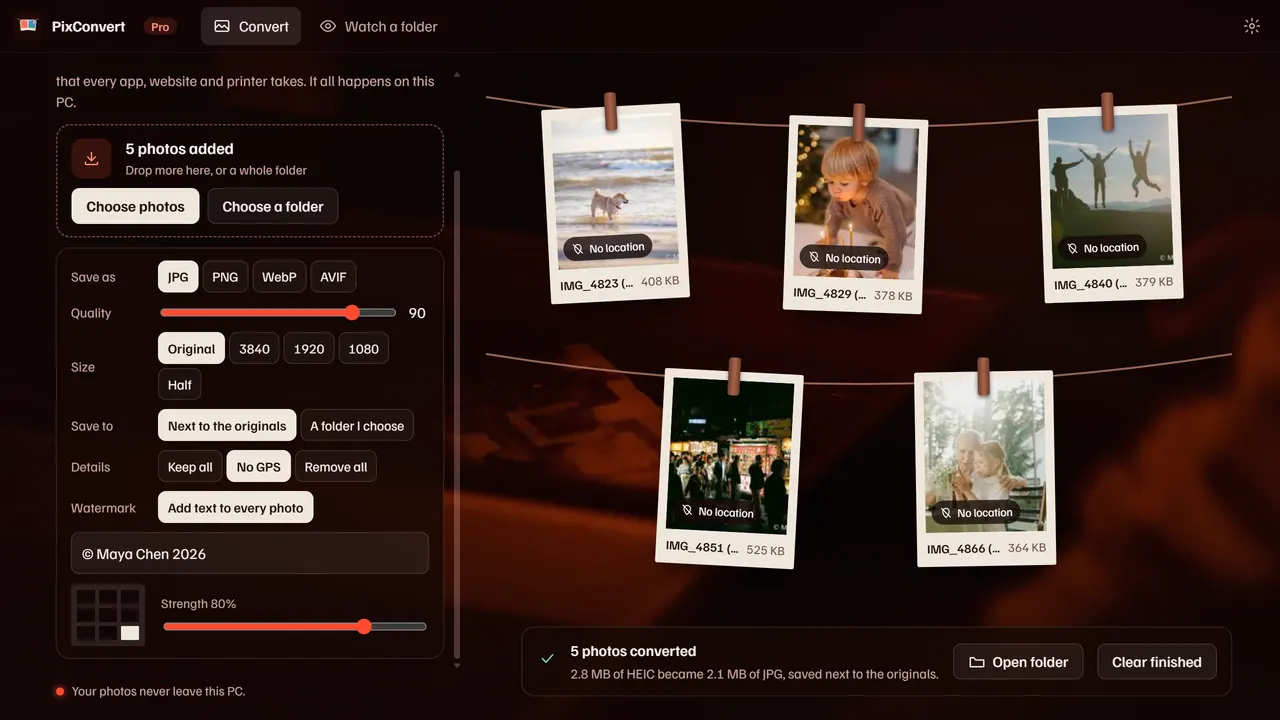
PixConvert Pro removing photo locations and adding a text watermark to a batch.

Date taken and camera kept

Photos come out the right way up, with date taken and camera details kept. Location from iPhone HEIC photos is never copied.

  • Pro: remove all photo details

    Drop only the GPS location, or strip everything before you share, plus a text watermark in any corner.

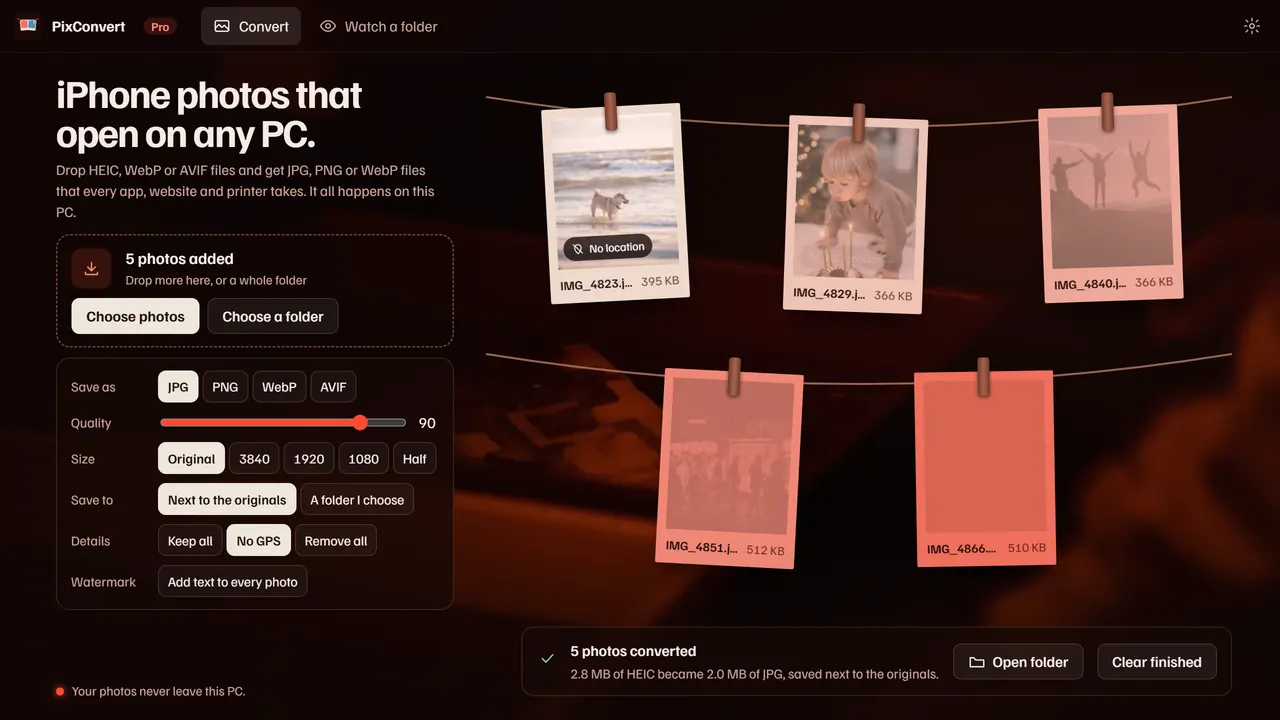
PixConvert mid-batch: photos hang on a drying line, the first already in colour and the rest still blank red paper.

Fits right into Windows

Right-click a photo in File Explorer, choose Open with, then PixConvert.

  • Pro: watch a folder

    New photos that land in a folder are converted automatically while PixConvert is open, with AVIF output and quality control.

How it works

Three steps, no setup

  1. Drop your photos

    Drag photos or a whole folder onto PixConvert, or choose them.

  2. Pick a format

    JPG, PNG or WebP, and a size if you want smaller files.

  3. Convert

    Each photo develops on the line as it is done, saved where you chose.

Pricing

Free to use, Pro when you need more

Get it free from the Microsoft Store. Pro is a one-time purchase on this website.

Free

$0

  • HEIC, HEIF, WebP, AVIF, PNG, JPG, BMP and TIFF in
  • JPG, PNG or WebP out
  • Unlimited batches and whole folders
  • Resize to 4K, Full HD, 1080 px or half size
  • Upright photos, with date taken and camera kept
  • Originals never changed or overwritten
Get it from Microsoft

Pro: everything in Free, plus

$4.99 one-time

  • Remove location only, or all photo details
  • AVIF output, quality control, lossless WebP
  • Text watermark in any corner
  • Watch a folder and convert new photos automatically
Buy Pro

Buy Pro here and paste the key into the app's Settings. It works on up to 3 PCs, with a 14-day refund, no questions asked.

What's new

Version 1.4.0

  • After you've used the app a few times, one quiet line under a result offers to open the Microsoft Store's rating box. It asks once, at most twice, never interrupts your work, and you can simply carry on.

Version 1.3.0

  • The Pro details and wording now stay current from our website, without waiting for an app update.
  • Settings has a new "Report a problem" form: tell us what went wrong, and leave your email if you want an answer.
  • You can turn on crash reports in Settings to help us fix problems faster. They are off unless you turn them on, and file paths, email addresses and your user name are removed before anything is sent.

Version 1.2.0

  • "Get Pro" at the top of the window shows what Pro adds and its price, and takes your license key right there, without opening Settings. During a sale, it shows the sale price.
  • Pro features are marked with a small "Pro" tag instead of a padlock.

FAQ

Questions

Something not answered here? Ask us and you'll get a reply.

Ask a question
How do I convert HEIC to JPG on Windows?

Open PixConvert, drop your iPhone photos (or a whole folder) onto it, leave JPG selected and choose Convert. The JPGs are saved next to the originals, or in a folder you choose.

Do I need the HEVC or HEIF extension from the Microsoft Store?

No. PixConvert reads HEIC photos itself, so you don't need to buy or install the HEVC Video Extensions.

Can it convert WebP to JPG, or AVIF to JPG?

Yes. WebP, AVIF, PNG, BMP and TIFF convert the same way as HEIC, to JPG, PNG or WebP.

Are my photos uploaded anywhere?

No. Every photo is converted on your PC. PixConvert only goes online to activate a Pro license, to check our website for news about our other apps (you can turn that off), and to send anonymous crash reports if you turn them on.

Does it keep the date a photo was taken?

Yes. Date taken and camera details are kept, and photos come out the right way up. Location from iPhone photos is never copied.

How do I remove EXIF data or the location from photos?

With Pro, choose Remove location only to drop GPS but keep the date and camera, or Remove all details to strip everything before you share.

Will it overwrite my original photos?

Never. If a file with the same name already exists, the new one gets a number, like photo (1).jpg.

Can I open a photo with PixConvert straight from File Explorer?

Yes. Right-click a HEIC, WebP, AVIF, BMP or TIFF file, choose Open with, then PixConvert. The photo lands on the line, ready to convert.

Can I install it with winget?

Yes: winget install --id 9NDR74WQDVSC --source msstore

What does Pro cost?

$4.99, once. Buy it on this website and paste the license key into Settings. It works on up to 3 PCs, and there's a 14-day refund, no questions asked.

Get PixConvert

Drop in iPhone photos and get JPG, PNG or WebP back. Whole batches and folders, converted on your PC, so nothing is uploaded.

© 2026 CAO Labs