Get help

ProductivityPDF Takeoff for Windows

Measure a plan PDF for free, offline on Windows

Measure lengths, areas and counts straight off a plan PDF. Set the scale once, click, and read the square feet. Nothing is uploaded.

  • Free in the Microsoft Store
  • No account needed
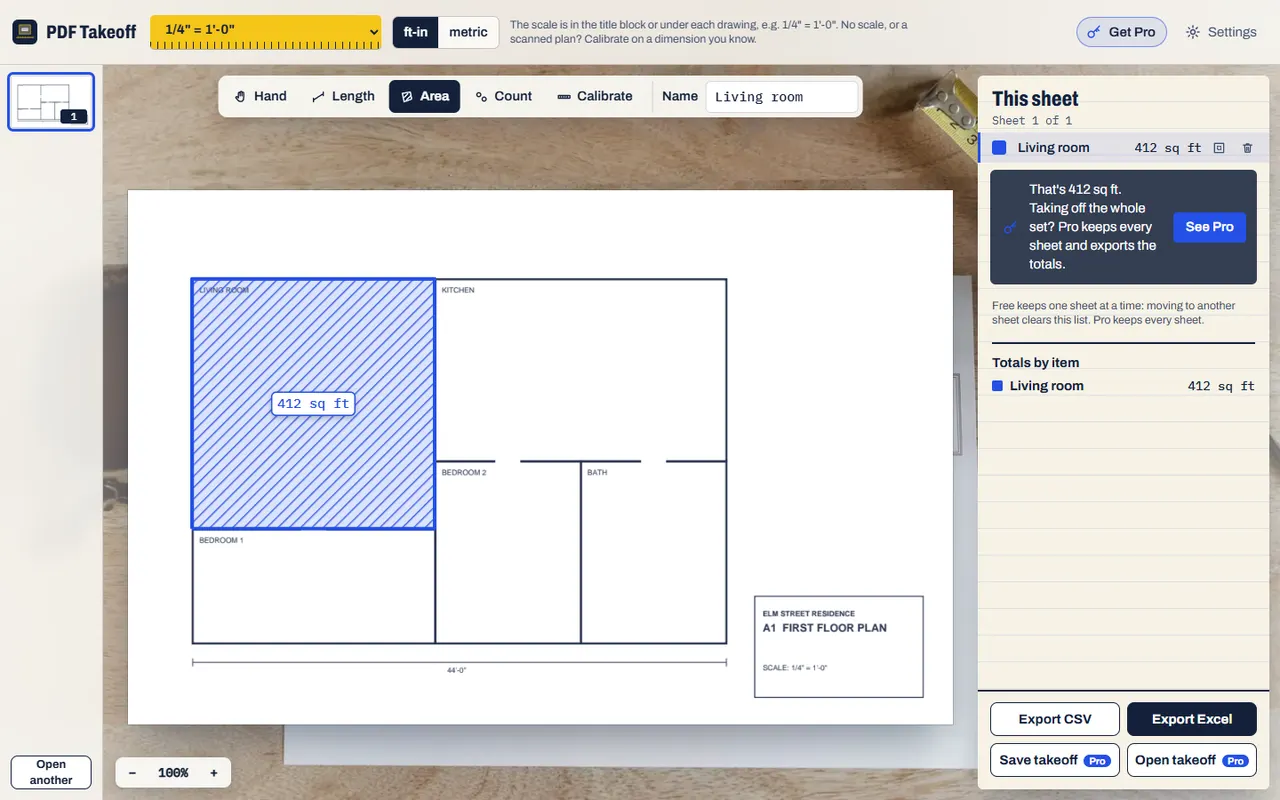
PDF Takeoff with a floor plan open: the living room is hatched in blue with 412 sq ft written on it.

Who it's for

Small contractors and estimators (drywall, flooring, painting, roofing, landscaping) who need quantities off a plan and cannot justify Bluebeam or PlanSwift.

Features

What it does

PDF Takeoff with a floor plan open: the living room is hatched in blue with 412 sq ft written on it.

Right on the plan

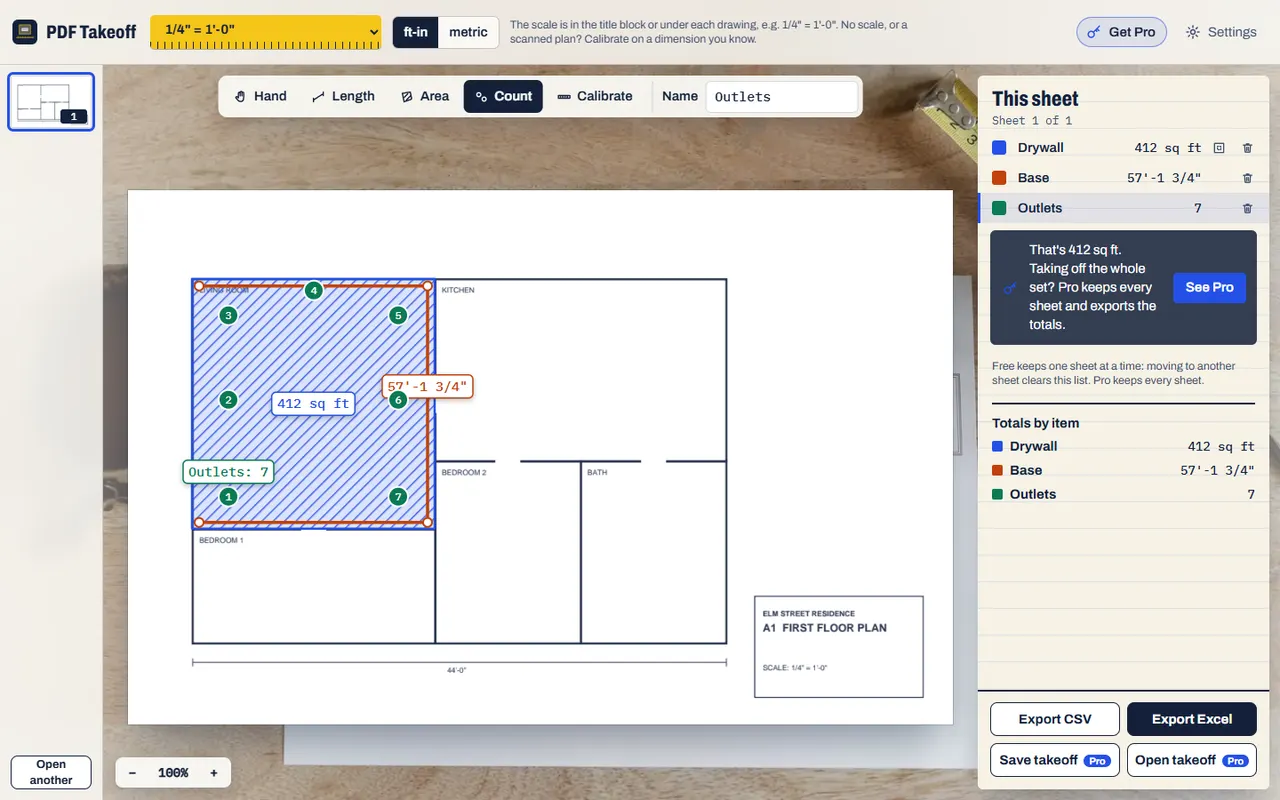
Click along a wall for its length, around a room for its area, or drop numbered markers to count. An area is hatched like a takeoff highlighter with its square feet written on it.

  • The scale from the plan

    If the PDF carries its own scale, PDF Takeoff starts with it. Otherwise pick 1/4" = 1'-0", 1" = 20' or a metric scale, or calibrate on a dimension you know.

PDF Takeoff with an area, a run of baseboard and seven outlets measured, each listed with a colour, a name and a value.

Openings cut out

Mark a door or a window on an area and it comes out of the total. Feet and inches or metric, one click to switch.

  • A name and a colour for each result

    Type what it is ("Drywall", "Base") and every result is listed with its value. The same name on several sheets is one item in the totals.

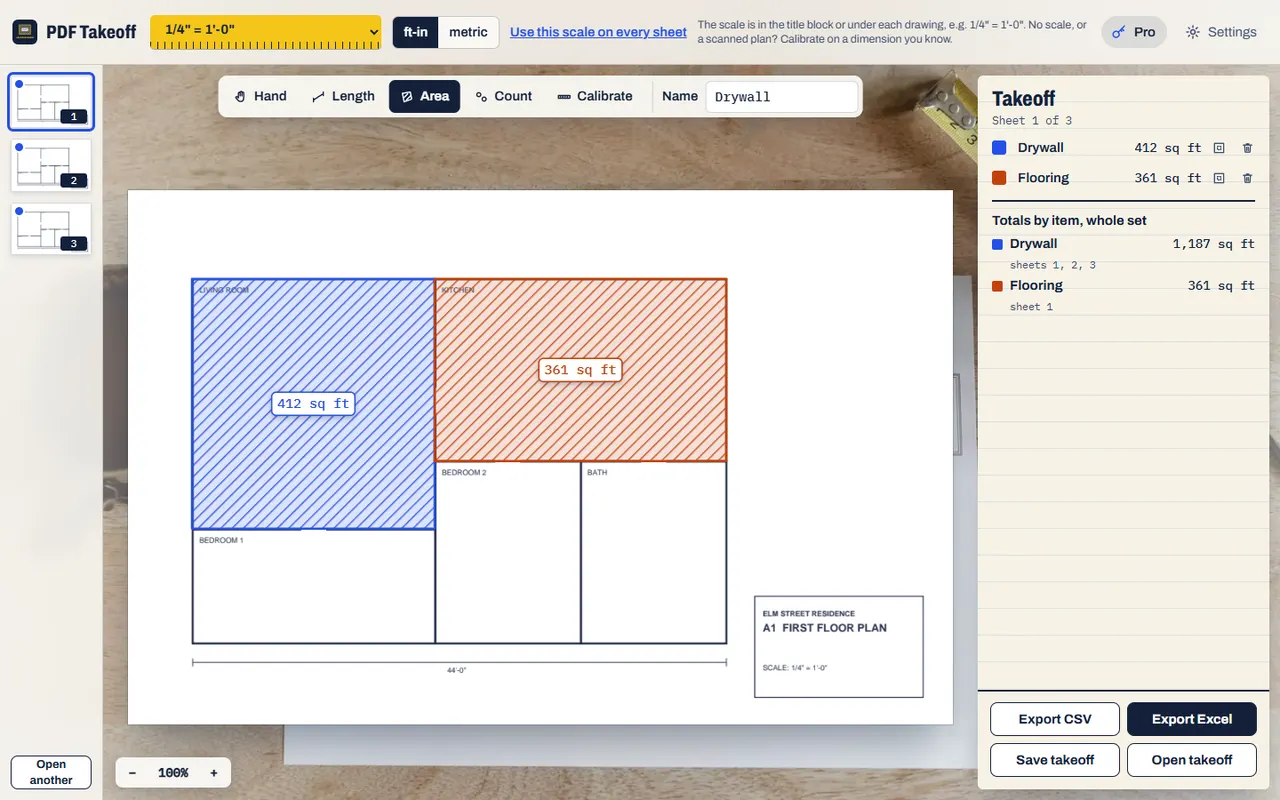
PDF Takeoff Pro with a three-sheet plan set: totals by item across every sheet, ready to export to Excel.

Pro: the whole plan set

Free measures one sheet at a time. Pro keeps every sheet, adds up each item across the set, exports every item to CSV or Excel and saves the takeoff to pick up later.

  • Your plans stay on your PC

    No upload, no account. The plan is drawn and measured on this PC, and nothing is written to the PDF.

How it works

Three steps, no setup

  1. Open a plan PDF

    Dropped in or picked, with a thumbnail for every sheet.

  2. Set the scale

    From the PDF, the title block, or a dimension you know.

  3. Click, and read the number

    Lengths, areas and counts, each with a name and a colour.

Pricing

Free to use, Pro when you need more

Get it free from the Microsoft Store. Pro is a one-time purchase on this website.

Free

$0

  • Lengths, areas and counts on any plan PDF
  • Scale from the PDF, a preset, or calibrated
  • Feet and inches, or metric
  • A colour and a name for each result
  • Export the first 5 items to CSV or Excel
  • Works offline, nothing uploaded
Get it from Microsoft

Pro: everything in Free, plus

$19.99 one-time

  • Every sheet of the set, measurements kept per sheet
  • Totals by item across sheets
  • Every item exported to CSV or Excel
  • Save a takeoff and reopen it later
Buy Pro

Buy Pro here and paste the key into the app's Settings. It works on up to 3 PCs, with a 14-day refund, no questions asked.

What's new

Version 1.1.0

  • Pro can price the takeoff: type a unit price under each item in the totals, and the CSV and Excel export gains Unit price and Total columns (quantity times price) with a grand total. Prices are saved with the takeoff.
  • Settings has a new "Report a problem" form: tell us what went wrong, and leave your email if you want an answer.
  • You can turn on crash reports in Settings to help us fix problems faster. They are off unless you turn them on, and file paths, email addresses and your user name are removed before anything is sent.

Version 1.0.0

  • First release: measure lengths, areas and counts on a plan PDF, on your PC, with no upload.
  • Set the scale from the title block, or calibrate on a dimension you know. Feet-inches or metric.
  • Each result has a colour and a name you type; areas show their square feet right on the plan.
  • Export the totals to CSV or Excel, the first 5 items free. With Pro, take off a whole plan set, export every item and save the takeoff to pick up later.

FAQ

Questions

Something not answered here? Ask us and you'll get a reply.

Ask a question
How do I measure square feet on a PDF plan?

Open the plan in PDF Takeoff, set the scale (it is in the title block or under each drawing, for example 1/4" = 1'-0"), choose Area and click around the room. Double-click to finish and the square feet appear on the plan.

Is the scale right?

Check one known dimension first. PDF Takeoff measures from the PDF's scale, and a plan printed or scanned off-scale gives wrong numbers. If there is no scale, or the plan is a scan, use Calibrate: click both ends of a dimension you know and type its length.

Can it read the scale stored in the PDF?

Yes. Plans from drawing tools often carry their scale in the PDF. PDF Takeoff reads it and starts with it; you can still change it.

Can I take off a whole set of sheets?

With Pro. Free measures one sheet at a time. Pro keeps every sheet, adds up each item across the set and exports the totals.

What does the export hold?

Totals by item: the name, type, quantity, unit and the sheets it came from, as CSV or Excel. Free exports the first 5 items, complete, and tells you how many more are waiting.

Is my plan uploaded anywhere?

No. Everything happens on your PC, with no account. PDF Takeoff only goes online to activate a Pro license, to check our website for news about our other apps (you can turn that off), and to send anonymous crash reports if you turn them on.

What does Pro cost?

$19.99, once. Buy it on this website and paste the license key into Settings. It works on up to 3 PCs, and there's a 14-day refund, no questions asked.

Get PDF Takeoff

Measure lengths, areas and counts straight off a plan PDF. Set the scale once, click, and read the square feet. Nothing is uploaded.

© 2026 CAO Labs